
Insights
Senders
A sender is who your brand sends from — an RCS agent, an SMS sender, or an email sender. The Senders page shows each one's channel and where it stands with the carrier or, for email, with domain authentication.
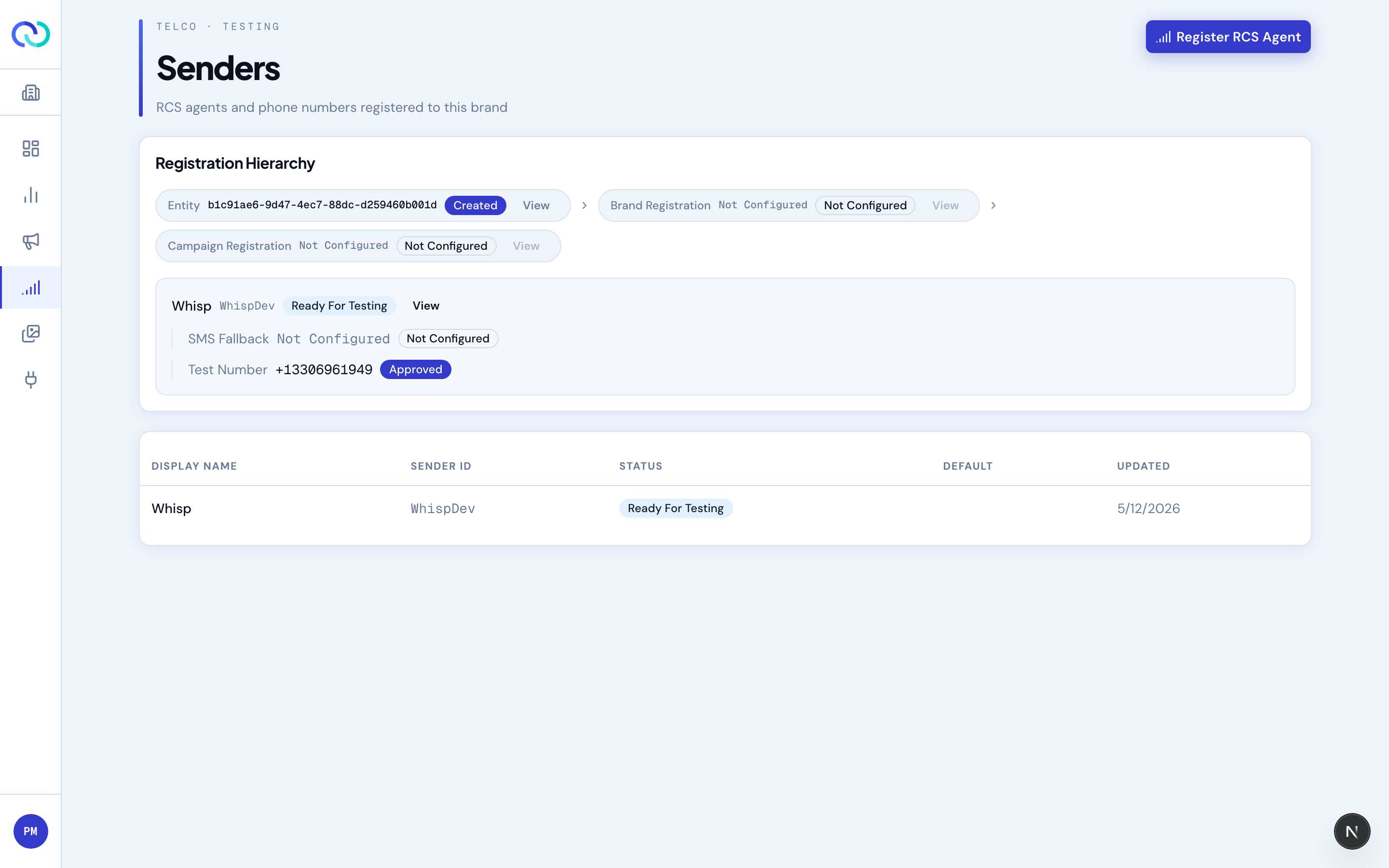
The registration hierarchy
The card at the top of the page is a quick read on where you stand with the underlying RCS provider. It shows three rungs:
- Entity — your legal entity. Created once, used by all your brands.
- Brand — the brand registration. Required for RCS.
- Campaign — the campaign-level registration used to vet the kind of traffic you'll send.
Each rung has its own status. RCS messages only flow once all three are green. If any rung is amber or red, the message under it tells you what's blocking and who to follow up with.
What's in the senders table
| Column | What it shows |
|---|---|
| Display name | What recipients see in their inbox. |
| Channel | RCS, SMS, or Email. RCS senders carry a rich profile; SMS senders send plain text from a number; email senders send from an address on a domain you've authenticated. |
| Sender ID | Provider-assigned identifier. Useful for support tickets. |
| Status | Live, Pending, Rejected, etc. Reflects the provider's last-known status. A sender shows as Live once its launch completes. You can build a campaign with a sender that isn't Live yet, but it will only deliver to that sender's approved test numbers until launch completes — Whisp warns you when you activate. |
| Default | Marks the sender that's pre-selected when you create a new campaign. Every sender appears in the campaign sender picker; a sender that isn't Live yet can still be selected, with an activation warning. |
| Updated | Last time the status changed. |
Each RCS sender row also shows its linked SMS fallback sender (used when RCS isn't available) and any test numbers registered against it.
SMS senders & fallback linking
SMS senders are first-class: they appear in the senders table with an SMS channel label and send plain text from a number (long code, short code, or alphanumeric). You select an SMS sender when you build an SMS campaign.
On an RCS sender's detail page, the SMS Fallback Sender card lets you link an SMS sender. When an RCS message can't be delivered, it's re-sent over SMS from the linked sender. Several RCS senders can share one SMS sender, and a sender doesn't have to have a fallback at all.
Editing an RCS sender's keywords also updates its linked SMS fallback, so the two keep replying the same way. If they have already drifted apart — a short code, for example, carries keywords its RCS sender has no reason to have — the Auto-responses & keywords card says so and offers Review differences instead of changing anything on its own. That opens a side-by-side of what each sender has — both the keywords and the reply each one currently sends — where you choose per group whether to keep both keyword sets, this sender's, or the fallback's, and which wording to keep when the two replies differ. Anything a choice would remove is listed before you apply it, and applying updates both senders.
Short codes
If your plan includes a short code, Whisp provisions and imports it for you — there's no carrier-registration workflow for you to complete. Once it's imported it appears as an SMS sender you can pick when building an SMS campaign, and it can send right away.
When a short code is imported, its STOP, HELP, and START keywords — along with common variants like STOPALL, UNSUBSCRIBE, INFO, and SUBSCRIBE — are set up automatically. Each variant reuses the reply you've already configured for that keyword group, so a customer gets a consistent response no matter which one they text. Anything already configured on the short code is left untouched. You can review and edit all of this from the sender's Auto-responses & keywords card.
Email senders & domain authentication
If your plan includes email, use Add email sender on the Senders page to create one. You provide a from-name, a from-address, an optional reply-to, and your sending domain (for example mail.yourbrand.com). The sender appears in the table with an Email channel label and is the sender you pick when building an email campaign.
To land in inboxes, your sending domain has to be authenticated. When you add the sender, we register the domain with the email provider, which generates the DNS records for your domain. The sender's detail page shows a Sending domain card listing those records — SPF, DKIM, DMARC, and tracking. Each record has copy buttons for its name and value, so you can paste them straight into your DNS host. Publish them, then use Re-check now; each record flips to verified as it's detected. In your Senders list, the email sender reads Ready once the domain is verified.
Test numbers
Test numbers are phone numbers that can receive Send Test sends without going through the real campaign audience flow. They have to be registered against a sender first.
Adding a test number
- Open the sender from the table.
- Add the test number in E.164 format (e.g.
+15555550123). - Wait for the status to flip from Pending to Verified — the provider sends a verification RCS message that the device owner must accept.
Sender details modal
Clicking a sender row opens a modal with the full sender profile: senderName, senderStatus, the configured fallback, and the list of test numbers with their per-device statuses. Use this view when you're debugging why a specific sender isn't delivering.
Replies & auto-responses
Each sender page has an Auto-responses & keywords card. The three required responses — opt-in (START), opt-out (STOP), and help (HELP) — reply automatically when a customer texts one of those keywords, and you can add your own keyword-triggered responses below them. These apply to both RCS and SMS.
At the top of that card is Reply routing — the catch-all that delivers ordinary customer replies (anything that isn't one of the keywords above) to your inbox. Without it, replies to your messages are never received. It's set up automatically when your sender finishes onboarding, and the card shows whether it's Active for RCS and SMS. If a channel shows Not set up, click Enable replies to turn it on.
Registration events
The main Senders page has a Registration Activity timeline that brings together every registration update across all of your channels in one place. Each entry is tagged with the channel it applies to — RCS, 10DLC, TFN, or Email — so even if you only use one of them, you can follow brand verification, carrier campaign approvals, sender launch, number provisioning, and email sending-domain authentication as they happen.
Each RCS and SMS sender page also has a Registration Events feed at the bottom. It's a running log of every onboarding step that has changed state — from the moment your brand identity is submitted, through carrier vetting, campaign acceptance, number provisioning, and the RCS sender launch. Email senders don't go through carrier registration — they show a sending-domain authentication card instead.
When the reviewer asks for a change, the matching event is flagged with an amber Update requested badge and the field-by-field feedback is shown directly under it (for example, companyAddress — Text length must be between 5 and 65.). A small amber alert dot also appears next to the sender in the side menu, on the Senders list, and on the sender row, so you can tell at a glance that something needs attention.
If the reviewer outright rejects the launch request, the event is flagged with a red Rejected badge and the rejection reason from the reviewer is shown directly under it (along with any field-level feedback if it was supplied). The same red Rejected indicator appears next to the sender on the Senders list so you can see it without opening the row.
The action indicator clears the moment you take action — for example, by clicking Resubmit after addressing the feedback. Update requested is patched in place; Rejected starts a fresh review (a new launch request is created behind the scenes). If the reviewer asks for further changes later, the indicator reappears.
If a 10DLC messaging campaign is rejected by the carriers, you'll see it in three places: a banner on your dashboard, an Action needed state on the onboarding panel with the carrier's feedback, and a Campaign rejected panel on the SMS sender page. All three lead to the same place. Click Fix campaign & appeal to edit the campaign details — primary messaging purpose, description, sample messages, opt-in flow, replies, keywords, links, and content attributes — right there. When you submit, your changes are saved, the campaign is updated, and an appeal is filed for a fresh carrier review. An appeal note is drafted automatically from what you changed; you can edit it before sending. Campaigns can be appealed up to five times within three months of a rejection.
Changing your messaging purpose re-registers the campaign. The carriers fix a campaign's purpose when it is first registered — an appeal can change what your campaign says, but not what kind of campaign it is. So if yours was registered as promotional and was rejected for something only promotional campaigns need (a marketing disclosure in your call-to-action, say) when you actually only send order and account updates, changing the purpose is the fix. Do it in the same form: we withdraw the campaign and register a new one with your updated details, and the button reads Re-register campaign so you know which is about to happen. Carrier review starts over from the beginning, and you can't send on that number until the new campaign is approved. Re-registering doesn't use up one of your five appeals — and it stays available even if you have used them all, so a campaign that no appeal could ever fix is never a dead end.
Registering a new RCS agent
The Register RCS Agent button takes you back into the brand onboarding wizard. The wizard collects the public profile (display name, color, banner, logo, privacy and TOS URLs) and submits it to the RCS provider for vetting. See Getting started for the full walkthrough.