
Campaigns
Message content
Pick a template when you create a campaign. Each template constrains what the editor shows, what fits on screen, and what falls back to SMS. Email is its own channel with its own composer.
Choosing a template
The template picker appears once, when you create a new campaign. It sets the structure of the message you can edit and the preview RCSync shows. The picker is split into two groups: RCS & SMS message types — the five templates below — and Email, which is a different channel rather than a different message shape.
| Template | When to use it | Notes |
|---|---|---|
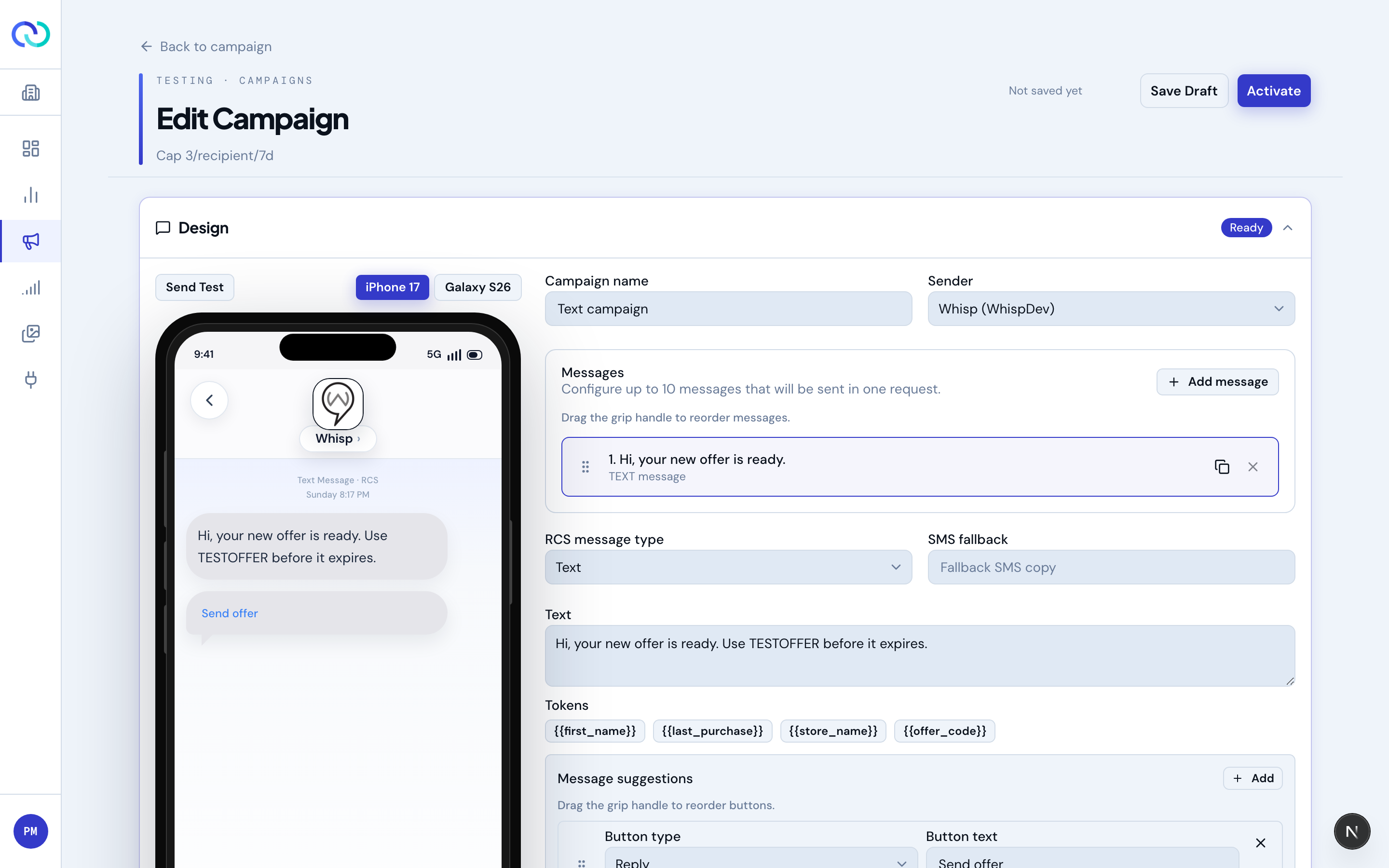
| Text | Plain copy with optional quick-reply chips. | Quickest path. Falls back cleanly to SMS. |
| File | Media-forward send: a single image, video, or document. | Pair with a short caption. Falls back to SMS with a link. |
| Rich Card | Single card with hero image, headline, body, and call-to-action buttons. | The most flexible single-message template. |
| Carousel | Multiple swipeable cards in one message. | Great when one message has several distinct items the recipient should browse. |
| Empty | Blank editor; build the message from scratch. | Useful when you're copying content from a spec. |
The email composer
Choosing Email in the picker replaces everything on this page's RCS editor with an email composer. There are no templates to choose between — an email is a subject and a body.
- Subject — what lands in the inbox line.
- Preview text — optional; the grey line most clients show after the subject. Leave it blank and the client falls back to the opening words of your body.
- HTML body — your markup, with a live rendered preview beside it. A plain-text version is generated from it automatically for clients that won't render HTML.
A compliant footer is appended to every email for you — your company name, your physical mailing address, and a one-click unsubscribe link. You don't add these yourself, and you can't remove them. Set the company name and address under Settings → Email footer; a campaign can't activate until they're filled in.
The Deliverability panel
Beside the composer, a small panel scores your draft against the things spam filters react to — shouting in all-caps, runs of exclamation marks, and phrases with a high spam correlation. It's advisory, not a gate: it won't stop you sending, but each flag is a real reason a message lands in a junk folder rather than an inbox.
What the phone preview tells you
- The preview is a close representation of how RCS-capable handsets will render your message, not an exact one — actual rendering varies by device, OS version, and messaging app. Always send a test to a real device before activating to see the real thing.
- Buttons that look truncated in the preview are likely to be truncated on at least some devices. Treat the preview as an early warning and shorten them.
- The preview doesn't simulate SMS fallback. To see what your SMS recipients get, use Send Test.
Buttons, quick replies, and chips
Quick replies
Buttons that send a postback when the recipient taps them. The recipient's reply shows up under Reply options on the campaign detail page, grouped by which chip they tapped. Use this for lightweight surveys, lead routing, or filtering downstream campaigns.
URL buttons
Open a URL in the recipient's browser. Use full URLs that include the scheme (https://) — some devices won't recognize a scheme-less value as a clickable link. Prefer your own short domain if you want clean analytics.
Dial buttons
Dial a phone number. Include the country code (e.g. +15555550123) so the dialer works the same way on every device, regardless of where the recipient is. Numbers can be up to 16 characters.
Personalization
Drop a replacement anywhere you want a per-recipient value by wrapping a field name in double braces — {{first_name}}, {{offer_code}}, {{store_name}}. The Text editor has quick-insert chips for the common ones; in every other field you just type the replacement.
Replacements work in card buttons too
Replacements aren't limited to the message body. You can use them in any card or button field — button label, postback data, link URL, dial number, location label, and a calendar event's title, description, and times. For example, a button that links to {{offer_url}} or a calendar invite whose start time is {{appt_start}} resolves differently for each recipient.
- For a button's Start time or End time, use the Use a replacement instead toggle to type a token in place of picking a fixed date.
- Length limits (like the 25-character button label) and format checks (like requiring a full URL) are relaxed while a field holds a replacement, because the final value is what counts — so keep the resolved value within the same limits.
- Latitude and longitude accept a replacement, but the value you provide must be a plain number for the map pin to land correctly.
Import from JSON
Already have a message in Messages API format? On an RCS campaign message — or an RCS follow-up step in the interactive builder — use Import JSON and paste the payload. RCSync fills out the editor from it: text, rich cards, carousels, media, and reply buttons all come across, ready to tweak and save.
- Accepts a full
{ "messages": [...] }payload, a single message, or a bare content object. - For a campaign, each message becomes one of your messages (up to 10); for a follow-up step, the first message is used.
- Importing replaces the current content for that message. The sender and recipients in the JSON are ignored — your campaign's own sender and audience always apply.
Media uploads
For rich cards and files, you can either upload directly in the wizard or pick from your Asset library. Uploads in the wizard are added to the library too, so reuse is automatic.